

25 个系统管理必备的 shell 命令
如果你读过我那篇关于“每个人都应该知道的十大 Git 命令”的文章,那么你可能会对我最喜欢的用于系统管理的 shell 命令感兴趣。这些命令通常只适用于 Unix 平台,让我们开始吧!
1) ls
想知道某个目录里有什么?`dir` 命令ls就是你的好帮手。它会列出目录的内容,并提供多个选项来控制这些项目的显示方式。由于默认情况下ls不会显示以 `.` 开头的条目.,你可以使用 `--include`ls -a选项来确保也包含这些条目。
nyxtom@enceladus$ ls -a
./                              README.md                       _dir_colors                     _tern-project                   _vimrc                          install.sh*
../                             _alacritty-theme/               _gitconfig                      _tmux/                          alacritty-colorscheme*
.git/                           _alacritty.yml                  _profile                        _tmux.conf
.gitignore                      _bashrc                         _terminal/                      _vim/                           imgcat.sh*
需要单列布局(每行一个条目)?请使用 `<list>` ls -1。需要包含更长的格式(例如大小、权限和时间戳)?请使用 `<list>` ls -l。需要按最后修改时间排序?请使用 `<list>`。ls -l -t需要递归列出条目?请使用 `<list>` ls -R。想要按文件大小排序?请使用 `<list>` ls -S。
2)猫
需要输出文件内容。使用cat!附加功能:使用cat -n可在行中包含数字。
nyxtom@enceladus$ cat -n -s _dir_colors
     1  .red 00;31
     2  .green 00;32
     3  .yellow 00;33
     4  .blue 00;34
     5  .magenta 00;35
     6  .cyan 00;36
     7  .white 00;37
     8  .redb 01;31
     9  .greenb 01;32
3)少/多
发现使用 `cat` 命令浏览文件时终端滚动过快?可以使用 `cat`less来解决这个问题。但是等等,`cat` 呢more?less它实际上是基于 ` cat` 的more。早期版本的 ` morecat` 无法向后滚动浏览文件。无论如何,`cat`less有一个很棒的功能,可以使用空格键/向下键/向上键/翻页键滚动浏览文件内容或输出。使用 `cat`q退出。
- 需要行号?请使用
less -N - 需要在有限的时间内进行搜索?使用
/wordshere搜索功能。 - 搜索时,使用“
n转到下一个结果”和“N转到上一个结果”即可。 - 想减少搜索范围吗?使用
less -pwordshere file.txt - 空格让你觉得烦吗?
less -s - 多个文件?!
less file1.txt file2.txt - 下一个文件是
:,然后按下n,上一个文件是,:然后按下p - 需要通过管道传输一些日志输出或 curl 命令的结果吗?使用
curl dev.to | less - Less 有书签功能吗?有的。在 Less 中,你可以用 `\b` 标记当前行,
m然后按任意字母作为书签,例如 `\b`a。要返回上一行,按'撇号键(`\b`)和要返回的书签字母(在本例中为 `\b`a)。 - 想在 Less 中直接从当前位置切换到默认编辑器,并在完成后返回吗?使用
v`ls -l` 命令,默认终端编辑器就会在正确的位置打开。然后,当你在该编辑器中退出/保存后,你就会回到之前的位置。😎 太棒了!🎉
4)卷曲
如果您需要执行几乎任何类型的协议请求,curl 是另一个必不可少的工具。以下列举一些您可以使用 curl 进行交互的方式。
- GET `curl https://dev.to/
- 输出到文件
curl -o output.html https://dev.to/ - 邮政
curl -X POST -H "Content-Type: application/json" -d '{"name":"tom"}' http://localhost:8080 - 基本身份验证`curl -u 用户名:密码http://localhost:8080
- 掉进猫咪
cat | curl -H 'Content-Type: application/json' http://localhost:8080 -d @- - 头
curl -I dev.to - 关注重定向
curl -I -L dev.to - 通过证书验证,跳过验证
curl --cert {{client.pem}} --key {{key.pem}} --insecure https://example.com
5)男人
如果你不明白某个命令的作用,或者需要查看文档,请使用man`!`。它实际上就是 `!` manual,而且适用于所有内置命令。它甚至可以用于自身。
$ man man
NAME
       man - format and display the on-line manual pages

SYNOPSIS
       man [-acdfFhkKtwW] [--path] [-m system] [-p string] [-C config_file] [-M pathlist] [-P pager] [-B browser] [-H htmlpager] [-S section_list] [section] name ...

DESCRIPTION
       man  formats  and displays the on-line manual pages.  If you specify section, man only looks in that section of the manual.  name is normally the name of the manual page, which is typically the name of a com-
       mand, function, or file.  However, if name contains a slash (/) then man interprets it as a file specification, so that you can do man ./foo.5 or even man /cd/foo/bar.1.gz.

       See below for a description of where man looks for the manual page files.

MANUAL SECTIONS
       The standard sections of the manual include:

       1      User Commands

       2      System Calls

       3      C Library Functions

       4      Devices and Special Files

       5      File Formats and Conventions

       6      Games et. Al.

       7      Miscellanea

       8      System Administration tools and Deamons

       Distributions customize the manual section to their specifics, which often include additional sections.
6)别名
如果您需要设置一个简短的命令名称来执行脚本或一些复杂的git命令,例如,请使用alias.
alias st="git status"
alias branches="git branch -a --no-merged"
alias imgcat="~/dotfiles/imgcat.sh"
额外提示:将这些添加到你的设置中~/.bashrc,以便在 shell 启动时执行这些命令!
7)回声
任何终端的“hello world”都是echo……echo "hello world"你可以包含环境变量,甚至子命令echo "Hello $USER"。
8) sed
Sed 是一个“流编辑器”。这意味着我们可以使用多种不同的方法来读取输入、修改输入并输出。以下是一些具体方法:
- 文本替换:
echo 'Hello world!' | sed s/world/tom/ - 选择:(
sed -n '1,4p' _bashrc表示n静默或抑制不匹配的行,1,4p表示p打印第 1-4 行。 - 多项选择:
sed -n -e '1,4p' -e '8-10p' _bashrc - 每隔 X 行:(
sed -n 1~2p _bashrc用~代替,表示每隔 2 行(在本例中为 2 行)) - 搜索全部/替换全部:(
sed s/world/tom/gp全局g搜索p是指打印每个匹配项)
注意: sed 的实现方式可能因您使用的系统而异。请记住,某些标志可能无法使用。更多信息请参阅相关文档man sed。
9)焦油

如果您需要创建包含多个文件的归档文件,别担心,您很快就会记住这些标志!
-c创造-v冗长-f文件名
看起来会是这样的:
tar -cvf archive.tar files/
默认情况下,tar 将创建一个未压缩的归档文件,除非你告诉它使用特定的压缩算法。
-zgzip(压缩效果不错,速度也合理)(.gz)-jbzip2(压缩率更高,速度更慢)(*.bz2)
tar -cvfz archive.tar.gz files/
提取过程如下:
-x提炼
类似的选项包括解压缩选项和详细输出:
# extract, verbose, gzip decompress, filename
tar -xvzf archive.tar.gz
10)光盘
更改目录。就这么简单cd ../../!cd ~ cd files/ cd $HOME
11)头部
head [-n count | -c bytes] [file ...]head这是一个筛选命令,它会显示每个指定文件的前count(-c)行或bytes(-b)行,如果没有指定文件,则显示标准输入的内容。如果count省略,则默认值为 10。如果指定了多个文件,则每个文件前面都会有一个标头,标头由字符串“==> XXX <==”组成,其中 XXX 是文件名。
head -n 10 ~/dotfiles/_bashrc{% raw %}`
```
## 12) mkdir
> mkdir creates the directories named as operands, in the order specified, using mode rwxrwxrwx (0777) as modified by the current umask. With the following modes:
> * -m mode: Set the file permission bits of the final directory created (mode can be in the format specified by `chmod`
> * -p Create intermediary directories as required (if not specified then the full path prefix must already exist)
> * -v Verbose when creating directories
## 13) rm
> remove the non-directory type files specified on the command line. If permissions of the file do not permit writing, and standard input is terminal, user is prompted for confirmation.
A few options of rm can be quite useful:
* `-d` remove directories as well as files
* `-r` `-R` Remove the file hierarchy rooted in each file, this implies the `-d` option.
* `-i` Request confirmation before attempting to remove each file
* `-f` Remove files without prompting confirmation regardless of permissions. Do not display diagnostic messages if there are errors or it doesn't exist
* `-v` verbose output
## 14) mv
> mv renames the file named by the source to the destination path. mv also moves each file named by a source to the destination. Use the following options:
* `-f` Do not prompt confirmation for overwriting
* `-i` Cause mv to write a prompt to stderr before moving a file that would overwrite an existing file
* `-n` Do not overwrite an existing file (overrides `-i` and `-f`)
* `-v` verbose output
## 15) cp
> copy the contents of the source to the target
* `-L` sumbolic links are followed
* `-P` Default is no symbolic links are followed
* `-R` if source designates a directory, copy the directory and entire subtree (created directories have the same mode as the source directory, unmodified by the process umask)
## 16) ps
> Display the header line, followed by lines containing information about all of your processes that have controlling terminals. Various options can be used to control what is displayed.
* `-A` Display information about other users' processes
* `-a` Display information about other users' processes as well as your own (skip any processes without controlling terminal)
* `-c` Change command column to contain just exec name
* `-f` Display uid, pid, parent pid, recent CPU, start time, tty, elapsed CPU, command. `-u` will display user name instead of uid.
* `-h` Repeat header as often as necessary (one per page)
* `-p` Display about processes which match specified process IDS (`ps -p 8040`)
* `-u` Display belonging to the specified user (`ps -u tom`)
* `-r` Sort by CPU usage
```
UID PID PPID C STIME TTY TIME CMD F PRI NI SZ RSS WCHAN S ADDR
501 97993 78315 0 5:28PM ?? 134:30.10 Figma Beta Helpe 4004 31 0 28675292 316556 - R 0
88 292 1 0 14Aug20 ?? 372:58.39 WindowServer 410c 79 0 8077052 81984 - Ss 0
501 78315 1 0 Thu04PM ?? 17:55.75 Figma Beta 1004084 46 0 5727912 109596 - S 0
501 78377 78315 0 Thu04PM ?? 22:16.66 Figma Beta Helpe 4004 31 0 5893304 59376 - S 0
501 70984 70915 0 Wed02PM ?? 8:58.36 Spotify Helper ( 4004 31 0 9149416 294276 - S 0
202 266 1 0 14Aug20 ?? 108:51.87 coreaudiod 4004 97 0 4394220 6960 - Ss 0
501 70979 70915 0 Wed02PM ?? 2:09.53 Spotify Helper ( 4004 31 0 4767800 49764 - S 0
501 97869 78315 0 5:28PM ?? 0:32.51 Figma Beta Helpe 4004 31 0 5324624 81000 - S 0
501 70915 1 0 Wed02PM ?? 9:53.82 Spotify 10040c4 97 0 5382856 92580 - S 0
```
## 17) [tail](https://en.wikipedia.org/wiki/Tail_(Unix))
Similar to `head`, tail will display the contents of a file or input starting at the given options:
* `tail -f /var/log/web.log` Commonly used to not stop the output when the end of the file is reached, but wait for additional data to be appended. (Use `-F` to follow when the file has been renamed or rotated)
* `tail -n 100 /var/log/web.log` Number of lines
* `tail -r` Input is displayed in reverse order
* `tail -b 100` Use number of bytes instead of lines
## 18) kill
> Send a signal to the processes specified by the pid
Commonly used signals are among:
```
1 HUP (hang up)
2 INT (interrupt)
3 QUIT (quit)
6 ABRT (abort)
9 KILL (non-catchable, non-ignorable kill)
14 ALRM (alarm clock)
15 TERM (software termination signal)
```
You will typically see a `kill -9 pid`. Find out the process with `ps` or `top`!
## 19) top
Need some realtime display of the running processes? Use `top` for this!
```
Processes: 517 total, 3 running, 3 stuck, 511 sleeping, 3013 threads 16:16:07
Load Avg: 2.54, 2.63, 2.57 CPU usage: 12.50% user, 5.66% sys, 81.83% idle SharedLibs: 210M resident, 47M data, 17M linkedit.
MemRegions: 153322 total, 5523M resident, 164M private, 2621M shared. PhysMem: 16G used (2948M wired), 431M unused.
VM: 2539G vsize, 1995M framework vsize, 14732095(0) swapins, 17624720(0) swapouts. Networks: packets: 81107619/74G in, 103172624/63G out. Disks: 44557301/463G read, 15432059/228G written.
PID COMMAND %CPU TIME #TH #WQ #PORTS MEM PURG CMPRS PGRP PPID STATE BOOSTS %CPU_ME %CPU_OTHRS UID FAULTS COW MSGSENT MSGRECV SYSBSD
97993 Figma Beta H 53.0 02:19:46 26 1 271 347M+ 0B 109M 78315 78315 sleeping *0[1] 0.00000 0.00000 501 5042481+ 5175 29897392+ 8417371+ 19506598+
62329 Slack Helper 21.6 05:18.63 20 1 165+ 123M- 0B 27M 62322 62322 sleeping *0[4] 0.00000 0.00000 501 2124802+ 13816 813744+ 435614+ 1492014+
0 kernel_task 9.6 07:47:25 263/8 0 0 106M 0B 0B 0 0 running 0[0] 0.00000 0.00000 0 559072 0 1115136682+ 1057488639+ 0
60459 top 5.5 00:00.65 1/1 0 25 5544K+ 0B 0B 60459 83119 running *0[1] 0.00000 0.00000 0 3853+ 104 406329+ 203153+ 8800+
```
## 20) and 21) [chmod](https://en.wikipedia.org/wiki/Chmod), [chown](https://www.man7.org/linux/man-pages/man1/chown.1.html)
File permissions are likely a very typical issue you will run into. Judging from the number of results for "permission not allowed" and other variations, it would be very useful to understand these two commands when used in conjunction with one another.
When you list files out, the permission flags will denote things like:
```
-rwxrwxrwx
```
`-` denotes a file, while `d` denotes a directory. Each part of the next three character sets is the actual permissions. 1) file permissions of the owner, 2) file permissions of the group, 3) file permissions for others. **r** is read, **w** is write, **x** is execute.
Typically, `chmod` will be used with the numeric version of these permissions as follows:
```
0: No permission
1: Execute permission
2: Write permission
3: Write and execute permissions
4: Read permission
5: Read and execute permissions
6: Read and write permissions
7: Read, write and execute permissions
```
So if you wanted to give read/write/execute to owner, but only read permissions to the group and others it would be:
```
chmod 744 file.txt
```
With `chown` you can change the owner and the group of a file as such as `chown $USER: file.txt` (to change the user to your current user and to use the default group).
## 22) grep
Grep lets you search on any given input, selecting lines that match various patterns. Usually grep is used for simple patterns and basic regular expressions. `egrep` is typically used for extended regex.
If you specify the `--color` this will highlight the output. Combine with `-n` to include numbers.
```
grep --color -n "imgcat" ~/dotfiles/_bashrc
251:alias imgcat='~/dotfiles/imgcat.sh'
```
## 23) find
Recursively descend the directory tree for each path listed and evaluate an expression. Find has a lot of variations and options, but don't let that scare you. The most typical usage might be:
* `find . -name "*.c" -print` print out files where the name ends with .c
* `find . \! -name "*.c" -print` print out files where the name **does not** end in .c
* `find . -type f -name "test" -print` print out only type files (no directories) that start with the name "test"
* `find . -name "*.c" -maxdepth 2` only descend 2 levels deep in the directories
## 24) ping
Among **many** network diagnostic tools from [lsof](https://dev.to/nyxtom/why-is-port-8080-already-in-use-and-what-else-is-running-using-lsof-to-navigate-your-system-567e) to `nc`, you can't go wrong with `ping`. Ping simply sends `ICMP` request packets to network hosts. Many servers disable ICMP responses, but in any case, you can use it in a number of useful ways.
* Specify a time-to-live with `-T`
* Timeouts `-t`
* `-c` Stop sending and receiving after **count** packets.
* `-s` Specify the number of data bytes to send
```
PING dev.to (151.101.130.217): 56 data bytes
64 bytes from 151.101.130.217: icmp_seq=0 ttl=58 time=17.338 ms
64 bytes from 151.101.130.217: icmp_seq=1 ttl=58 time=32.732 ms
64 bytes from 151.101.130.217: icmp_seq=2 ttl=58 time=14.288 ms
64 bytes from 151.101.130.217: icmp_seq=3 ttl=58 time=15.166 ms
64 bytes from 151.101.130.217: icmp_seq=4 ttl=58 time=16.465 ms
--- dev.to ping statistics ---
5 packets transmitted, 5 packets received, 0.0% packet loss
round-trip min/avg/max/stddev = 14.288/19.198/32.732/6.848 ms
```
## 25) sudo
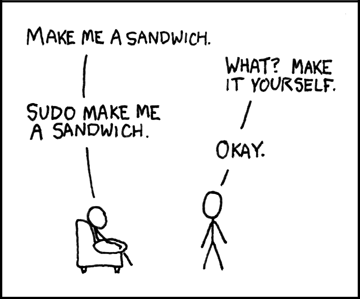
This command is required if you want to do actions that require the root or superuser or another user as specified by the security policy.
```
sudo ls /usr/local/protected
```
## Conclusion
There are *a lot* of really useful commands available. I simply could not list them all out here without doing them a disservice. I would add to this list a number of *very important* utilities like `df`, `free`, `nc`, `lsof`, and loads of other diagnostic commands. Not to mention, many of these commands actually deserve their own post! I plan on writing more of these in the coming weeks. Thanks! If you have suggestions, please feel free to leave a comment below!

---
If you liked this post, give me a follow and a like. You might also be interested in some of my other posts such as:
> * [Top 10 git commands everyone should know](https://dev.to/nyxtom/top-10-git-commands-everyone-should-know-57e0)
> * [lsof is amazing is here's why you should use it](https://dev.to/nyxtom/why-is-port-8080-already-in-use-and-what-else-is-running-using-lsof-to-navigate-your-system-567e)
Also check out my [twitter](https://twitter.com/nyxtom) and my [github](https://github.com/nyxtom). Thanks again!
Cheers! 🍻