

使用 Tailwind CSS 和 Flowbite 构建的开源 WYSIWYG 文本编辑器组件
Flowbite 的 WYSIWYG 文本编辑器是基于 Tip Tap 库的开源软件,采用 MIT 许可证,可让您轻松编辑包含排版样式、链接、图像、视频等的复杂文本数据。
Flowbite 提供的标记和样式全部使用 Tailwind CSS 的实用类构建,而 WYSIWYG 文本编辑器中的内容样式则基于Flowbite Typography插件。
本页提供的所有示例均支持深色模式、RTL(从右到左)样式、移动设备响应式设计,您可以使用 JavaScript 和 Flowbite API 轻松添加自己的功能。
入门
在继续之前,请确保您的项目中已安装 Tailwind CSS、Flowbite 和 Tip Tap。
请按照Flowbite 的快速入门指南启用交互元素
安装Flowbite Typography插件,即可在 WYSYIWYG 编辑器预览中格式化文本内容:
npm i flowbite-typography
在文件中引入插件tailwind.config.js:
  theme: {
    // ...
  },
  plugins: [
    require('flowbite-typography'),
    // ...
  ],
}
wysiwyg将Flowbite 插件中的字段设置为truetrue 以启用伪样式:
plugins: [
  require('flowbite/plugin')({
      wysiwyg: true,
  }),
  // ... other plugins
]
最后,通过 NPM 安装 Tip Tap,如果您使用 CDN,则跳过此步骤:
npm install @tiptap/core @tiptap/pm @tiptap/starter-kit
现在,您可以复制以下 HTML 标记和 JavaScript 代码,使用下面的示例了。
默认文本编辑器
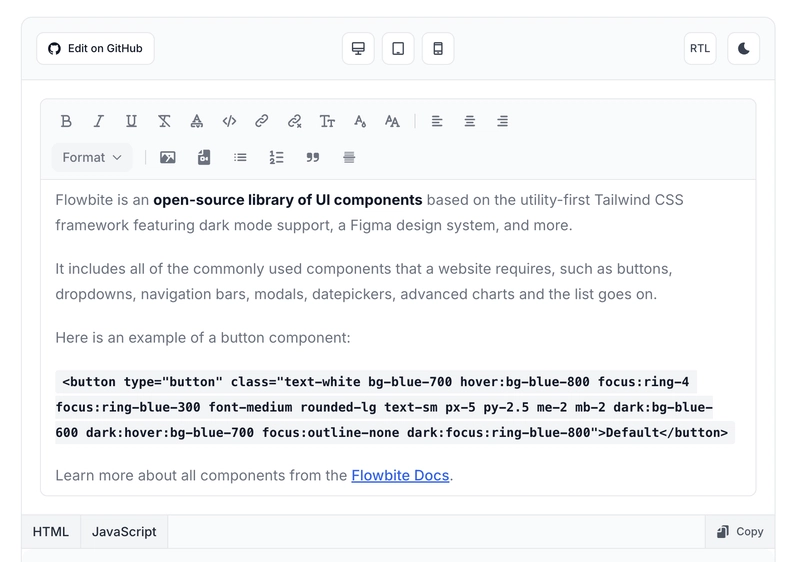
使用此 WYSIWYG 文本编辑器示例,可以实现基本的排版样式和格式设置,添加列表、链接、图像、视频、代码块,对齐文本,添加引用块,设置标题和段落等等。
文本格式
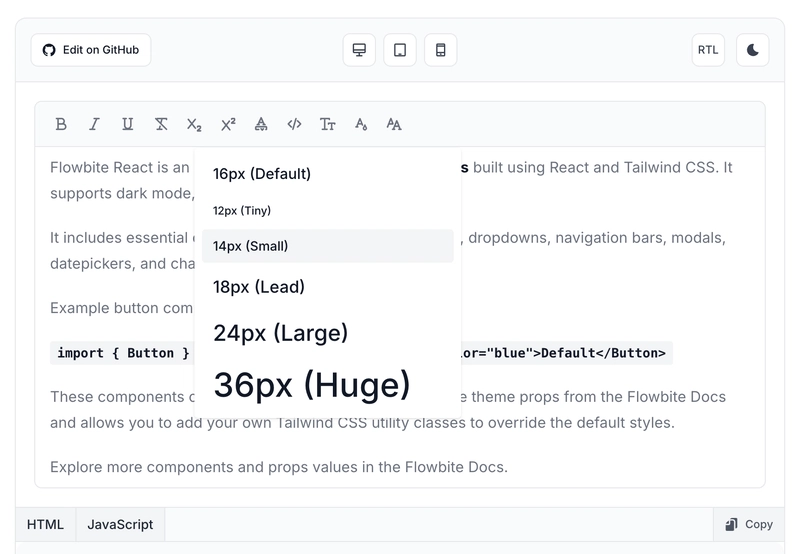
使用此 WYSIWYG 文本编辑器示例,启用排版样式、格式和标记,例如下划线、粗体、斜体、删除线、代码、高亮显示,还可以使用 Tailwind CSS 的实用类选择文本大小、颜色、字体系列等等。
文本对齐
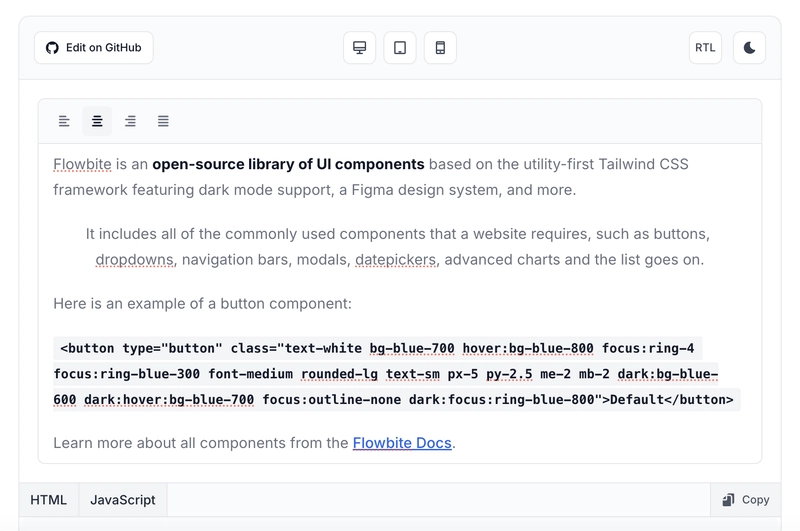
启用 WYSIWYG 组件内内容的文本左对齐、居中对齐、右对齐和两端对齐。
排版元素
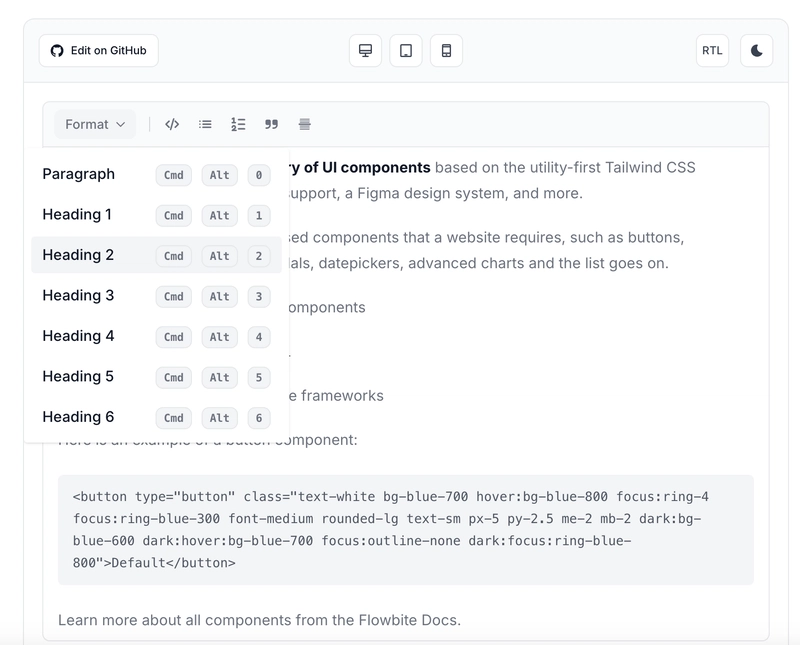
使用此示例创建基于 Tailwind CSS 实用类和 Flowbite API 的排版元素,例如项目符号列表、有序列表、引用块、水平线、段落、标题、代码块。
配置链接
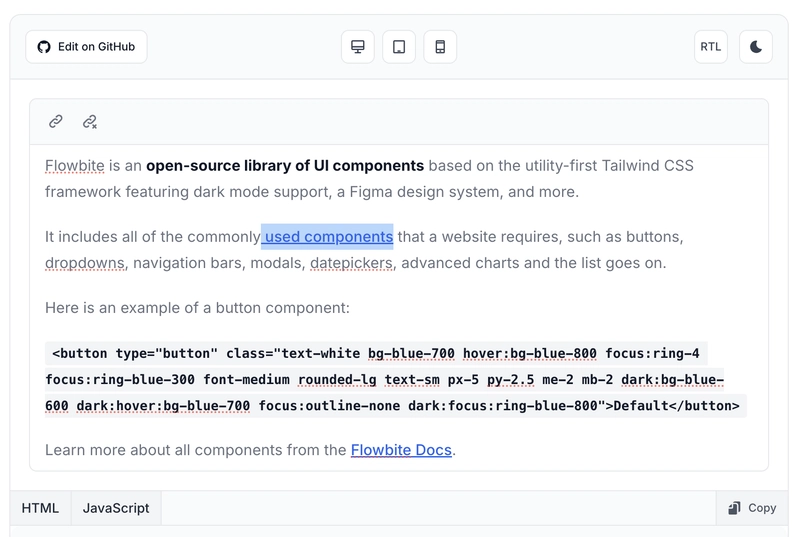
使用此示例为 WYSIWYG 文本编辑器中的内容添加和删除锚链接。
使用图像
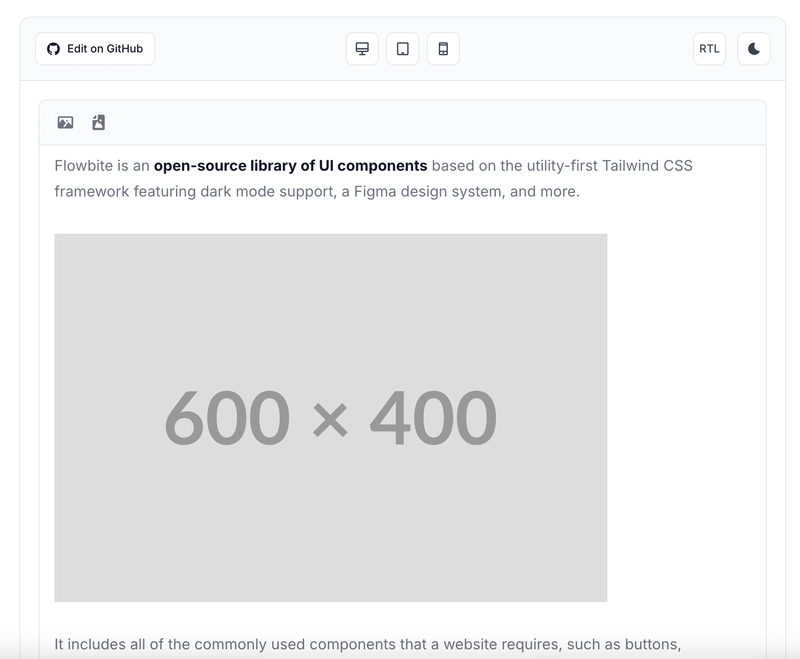
使用此示例学习如何在 WYSIWYG 文本编辑器中添加图像,并配置图像 URL、图像 alt 属性(这对 SEO 和可访问性很重要)和图像标题等设置。
添加视频
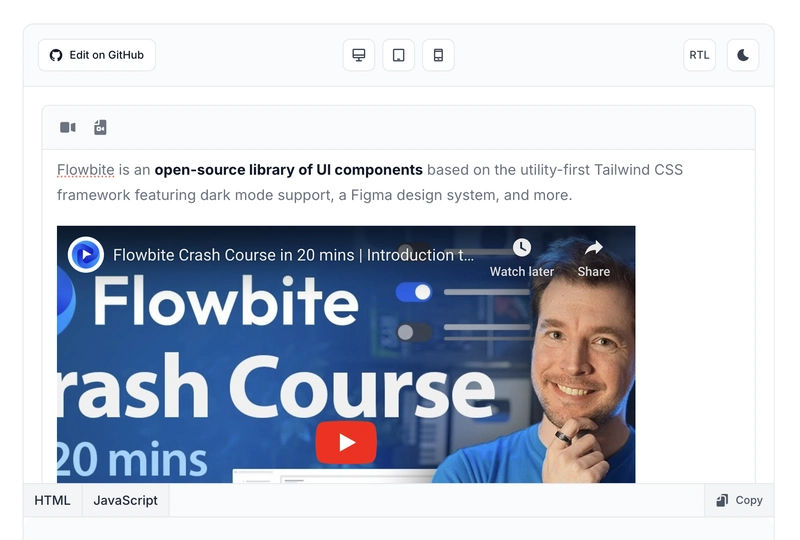
使用此示例,根据 YouTube URL 源将视频嵌入到 WYSIWYG 文本编辑器中,并使用 Flowbite 模态组件 API 设置视频的宽度和高度。
编辑表格
使用此示例在 WYSIWYG 文本编辑器中编辑表格数据,通过添加和删除表格列、行和单元格,并使用其他功能浏览表格数据,从而实现便捷的编辑过程。

撤销和重做
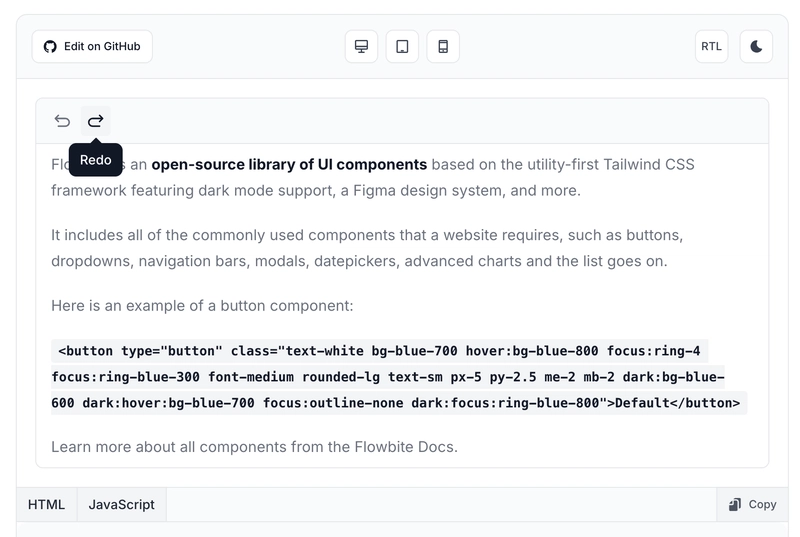
使用 WYSIWYG 文本编辑器组件的历史记录功能来集成撤销和重做操作。
导出数据
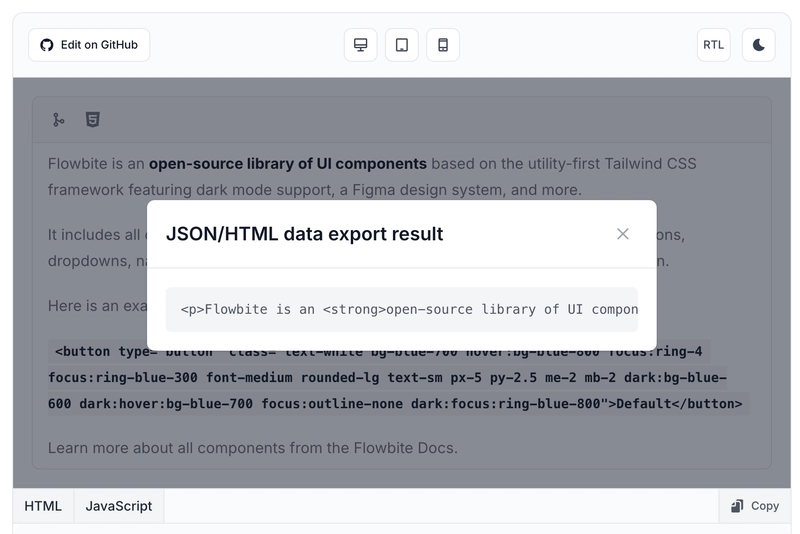
使用 editor.getJSON() 和 editor.getHTML() 函数将 WYSIWYG 文本编辑器中的文本内容导出为 JSON 或原始 HTML 格式,以便持久化到您的数据库或 API 结构中。
Javascript 行为
了解如何使用 Javascript 以编程方式使用 WYSIWYG 编辑器,方法是创建对象的新实例、设置选项、方法、事件监听器等,以便将其集成到您的代码库中。
通过 NPM 或 CDN 安装 Tip Tap 后,您可以创建一个新Editor对象:
import { Editor } from '@tiptap/core';
import StarterKit from '@tiptap/starter-kit';

new Editor({
  element: document.getElementById('wysiwyg'),
  extensions: [StarterKit],
  content: '<p>Welcome to Flowbite!</p>',
})
请确保您还包含一个div具有正确 ID 的空元素:
<div id="wysiwyg"></div>
这段代码会自动设置 WYSIWYG 组件内部所需的标记。请注意,Tip Tap 库是无头组件,因此您需要自行设置元素样式,但您可以复制粘贴此页面上 Flowbite 的示例。
内容样式
我们还建议添加来自Flowbite Typography包的自定义排版类,以便文本编辑器中的内容能够正确设置样式:
new Editor({
  element: document.getElementById('wysiwyg'),
  extensions: [StarterKit],
  content: '<p>Welcome to Flowbite!</p>',
  editorProps: {
        attributes: {
            class: 'format lg:format-lg dark:format-invert focus:outline-none format-blue max-w-none',
        },
    }
})
扩展
Tip Tap 是一个模块化库,这意味着如果您想在 WYSIWYG 组件中引入图像、视频、链接和其他元素,则需要从库中专门导入这些资源,并在初始化Editor对象时将其设置为扩展。
以下是一个添加链接扩展名的示例:
import { Editor } from '@tiptap/core';
import StarterKit from '@tiptap/starter-kit';
import Link from '@tiptap/extension-link';

const editor = new Editor({
    element: document.querySelector('#wysiwyg-links-example'),
    extensions: [
        StarterKit,
        Link.configure({
            openOnClick: false,
            autolink: true,
            defaultProtocol: 'https',
        })
    ],
    content: '<p>Flowbite is an <strong>open-source library of UI components</strong> based on the utility-first Tailwind CSS framework featuring dark mode support, a Figma design system, and more.</p><p>It includes all of the commonly used components that a website requires, such as buttons, dropdowns, navigation bars, modals, datepickers, advanced charts and the list goes on.</p><p>Learn more about all components from the <a href="https://flowbite.com/docs/getting-started/introduction/">Flowbite Docs</a>.</p>',
    editorProps: {
        attributes: {
            class: 'format lg:format-lg dark:format-invert focus:outline-none format-blue max-w-none',
        },
    }
});
方法
您可以轻松调用对象中的方法Editor来设置文本样式、链接、图像等等。以下是一个示例,当按钮被点击时,系统会提示您输入链接的 URL,并将其添加到当前选定的文本中:
// set up custom event listeners for the buttons
document.getElementById('toggleLinkButton').addEventListener('click', () => {
    const url = window.prompt('Enter image URL:', 'https://flowbite.com');
    editor.chain().focus().toggleLink({ href: url }).run();
});
以下是另一个可以取消链接设置的示例:
// unset the links based on a button click
document.getElementById('removeLinkButton').addEventListener('click', () => {
    editor.chain().focus().unsetLink().run()
});
本页示例包含功能元素,您可以查看 JavaScript 选项卡以获取源代码。
执照
本页面的资源均采用 MIT 许可证授权,包括 Flowbite 示例和 Tip Tap。
鸣谢
如果没有使用以下开源资源,这些示例是无法完成的:
文章来源:https://dev.to/themesberg/open-source-wysiwyg-text-editor-component-built-with-tailwind-css-and-flowbite-5a0