

日常使用的实用 Git 命令!
你知道吗?关于Git 的问题在 Stack Overflow 上的浏览量最高。我之前在 Google 上搜索了很多关于如何使用 Git 执行特定操作的信息,结果反而耽误了我不少时间。有些操作我们经常用到,所以最好还是学习一下。以下是我从朋友和网上学到的一些常用方法,希望对你有所帮助。
开始之前,您应该运行 `git --version` 命令来检查您当前的 Git 版本,我的版本是 2.12.2,与 macOS High Sierra 系统版本相同。这里是 Git 的官方文档,您可以阅读有关 Git 命令、参数和新版本发布的详细信息。
目录

实用命令
🔍状态
检查工作目录和暂存区的状态:
git status
显示 HEAD 目录和当前工作目录之间的更改:
git diff
以单行格式显示提交列表:
git log --oneline
显示添加或删除特定字符串的提交记录:
git log -S 'LoginViewController'
搜索包含日志消息的提交:
git log — all — grep=’day of week’
🔍 标签
列出所有标签:
git tag
给提交添加标签:
git tag -a 1.4 -m "my version 1.4"
删除远程标签:
git push --delete origin tagname

git push origin :tagname
将标签推送到远程:
git push origin tagname
重命名标签:
git tag new old
git tag -d old
git push origin :refs/tags/old
git push --tags
将标签从一个提交移动到另一个提交:
git push origin :refs/tags/<tagname>
git tag -fa tagname
git push origin master --tags
🔍远程
列出所有远程仓库:
git remote
重命名远程:
git remote rename old new
删除过时的远程跟踪分支:
git remote prune origin
🔍分店
列出所有分支机构:
git branch
在本地计算机上创建分支并切换到该分支:
git checkout -b branch_name
从提交创建分支:
git branch branch_name sha1_of_commit
将分支推送到远程仓库:
git push origin branch_name
重命名其他分支:
git branch -m old new
重命名当前分支:
git branch -m new
重命名远程分支:
git branch -m old new               # Rename branch locally
git push origin :old                 # Delete the old branch
git push --set-upstream origin new   # Push the new branch, set local branch to track the new remote
删除分支:
git branch -D the_local_branch

git push origin :the_remote_branch
🔍 提交
撤销上次提交:
git reset --hard HEAD~1
将最近 n 次提交合并为一次提交:
git rebase -i HEAD~5

git reset --soft HEAD~5
git add .
git commit -m "Update"
git push -f origin master
将最后提交移到新分支:
git branch newbranch
git reset --hard HEAD~3 # Go back 3 commits. You *will* lose uncommitted work.*1
git checkout newbranch
🔍 樱桃采摘
在当前分支的顶部添加一些提交:
git cherry-pick hash_commit_A hash_commit_B
🔍 Reflog
显示参考日志:
git reflog
获取提交:
git reset --hard 0254ea7

git cherry-pick 12944d8
🔍 恢复
撤销上一次提交:
git revert HEAD
git commit
撤销前 3 次提交的更改,而不进行新的提交:
git revert --no-commit HEAD~3..
🔍 修改
修改之前的提交:
git commit --amend

git commit --amend --no-edit

git commit --amend -m "New commit message"
git commit --amend -m "New commit message"
git push --force <repository> <branch>
🔍结账
查看标签:
git checkout tagname

git checkout -b newbranchname tagname
查看分行信息:
git checkout destination_branch
如果存在合并冲突,请使用 -m 参数:
git checkout -m master // from feature branch to master
检出一个提交:
git checkout commit_hash

git checkout -b newbranchname HEAD~4

git checkout -b newbranchname commit_hash

git checkout commit_hash file
检出文件:
git checkout c5f567 -- Relative/Path/To/File
🔍 储藏室
存点零钱:
git stash save "stash name"

git stash
列出所有藏匿点:
git stash list
运用一种隐蔽方式:
git stash pop

git stash apply

git stash apply stash@{2}
🔍 重新定基
将当前分支变基到 master 分支:
git rebase master // rebase the current branch onto master
继续变基:
git rebase --continue
中止变基:
git rebase --abort
🔍 .gitignore
取消跟踪刚刚在 .gitignore 中声明的文件:
git rm -r --cached .
git add .
git commit -am "Remove ignored files"
🔍索引
删除未跟踪的文件:
git clean
从索引中删除文件:
git reset file
重置索引以匹配最近一次提交:
git reset
重置索引和工作目录,使其与最近一次提交保持一致:
git reset --hard
🔍 其他
在 git rebase 过程中获取他们的更改:
git checkout --ours foo/bar.java
git add foo/bar.java
在 git 合并过程中获取他们的更改:
git pull -X theirs

git checkout --theirs path/to/the/conflicted_file.php

git checkout --theirs .
git add .

git checkout branchA
git merge -X theirs branchB
将主分支的提交合并到特性分支:
git checkout feature1
git merge --no-ff master
以二叉搜索树的方式在提交历史记录中查找错误:
git bisect start

git bisect good

git bisect bad
Git别名
如果你经常使用某些命令,那么可以考虑使用 Git 别名。以下是如何为 `git status` 创建别名,之后你只需输入 `git st` 即可:
git config — global alias.st status
别名配置存储在 .gitconfig 文件中,您可以从thoughtbot和mathiasbynens那里学习一些很酷的别名。
GUI客户端
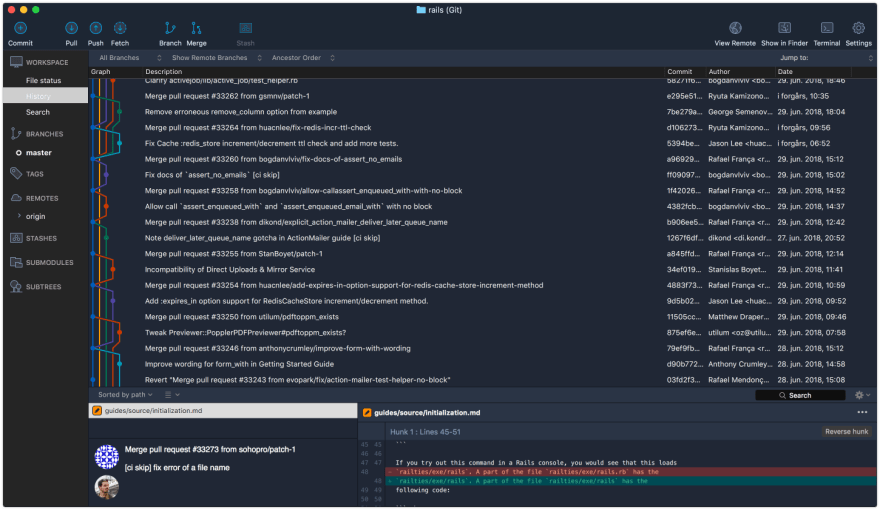
使用命令行操作很酷也很快。但是,对于查看分支和提交记录,我发现使用图形界面客户端更直观、更舒适。你可以在这里看到所有图形界面客户端的列表,我自己使用的是SourceTree。
提交前请核实
我们通常会有一些实验代码,不希望它们影响到我们的提交。我通常用 // 标记我的实验代码,但有时会忘记取消暂存。
从 2.9 版本开始,Git 对其提交钩子进行了改进,使其能够全局使用hooksPath。
首先,我们需要创建一个名为 pre-commit 的文件,并将其放置在例如 /Users/khoa/hooks 目录中:
在你的项目中,运行 git config core.hooksPath /Users/khoa/hooks。
每当您提交一个包含该模式的文件时,系统都不会允许您提交。有关如何在 SourceTree 中实现此功能,请参阅:
SourceTree 和 pre commit hook
*pre-commit 文件在终端中运行良好,但 SourceTree 似乎会忽略它。我同时使用终端和 SourceTree,因为……*medium.com
接下来该何去何从
这只是 Git 功能的冰山一角,如果您想了解更多,这里有一些入门链接。
-
Atlassian Git教程:概述如何在Git版本控制下设置存储库(repo)。
-
git-cheat-sheet:Git 速查表可以让你免于死记硬背所有命令。
-
从内到外解读 Git:本文重点介绍 Git 的底层图结构。
-
git-game:一款测试 Git 技能的终端游戏
-
Git沉浸式体验:掌握Git最可靠的方法是让自己沉浸在它的各种功能和操作中,亲身体验它。
-
git-flight-rules git 飞行规则
-
gitflow 是Git 扩展,为 Vincent Driessen 的分支模型提供高级仓库操作。
-
diff-so-fancy美观的差异对比,带有差异高亮显示等功能
-
GitHub 速查表: Git 和 GitHub 的一些实用功能列表
-
Git 使用技巧最常用的 Git 使用技巧
原文链接:https://medium.com/flawless-app-stories/useful-git-commands-for-everyday-use-e1a4de64037d
文章来源:https://dev.to/onmyway133/useful-git-commands-for-everyday-use-552p