


快照
一款在线相机,它使用您的摄像头拍摄照片,您可以立即使用快速编辑功能编辑照片,并将其下载到您的设备上。访问地址:https ://snapshotcam.netlify.app ~ Project Enigma 的一部分
在开始之前,这里有一个链接,点击即可查看您读完本文后能够创建的内容。
是的,确实可以在浏览器上截取图像。的确,借助 JavaScript 的强大功能,我们几乎可以做任何事情,除了在浏览器上。
现在,为了在浏览器中点击静态图像,我们将使用 JavaScript 的 Navigator API。对于那些不熟悉 JavaScript Navigator API 的人,这里有一个我在javascripttutorial.net上找到的简短解释。
JavaScript Navigator 对象提供有关 Web 浏览器及其功能的信息。您可以通过只读的 `window.navigator` 属性引用 Navigator 对象。Navigator
对象包含一些属性,用于传递浏览器信息。例如,`userAgentwindow.navigator` 属性window.navigator就是一个用于标识 Web 浏览器的长字符串。
//Run this in your console now

window.navigator.userAgent

//The output should somewhat look like this
/* Mozilla/5.0 (Windows NT 10.0; Win64; x64) AppleWebKit/537.36
(KHTML, like Gecko) Chrome/86.0.4240.111 Safari/537.36
OPR/72.0.3815.186 */
是的,通过 Navigator API,您可以获取用户设备的所有数据,还可以访问特定的外围设备,例如设备的摄像头、麦克风等等。考虑到 Navigator API 的强大功能,它确实非常出色。
事实上,如果您还不知道这一点,您甚至可以查看设备的电池状态/百分比/充电情况,在移动设备上,您甚至可以使用它navigator.vibrate(100)来振动用户的设备,以获得一些触觉反馈。
所以现在,你可能已经对 JavaScript 的 Navigator API 的功能有了足够的了解,它比这里听起来要酷得多。
既然我们正在开发一款相机应用,就需要向用户展示其设备摄像头正在拍摄的画面。为此,我们需要使用 HTML 视频标签来传输摄像头拍摄的视频流。以下是 HTML 代码:
<!DOCTYPE html>
<html>
    <head>
        <title>Document Title</title>
        <link rel="stylesheet" href="https://fonts.googleapis.com/icon?family=Material+Icons">
        <link href="https://unpkg.com/material-components-web@latest/dist/material-components-web.min.css" rel="stylesheet">
        <script src="https://unpkg.com/material-components-web@latest/dist/material-components-web.min.js"></script>
    </head>
    <body>
        <center class="container">

            <h1>Camera</h1>

            <video class="videoStream" muted playsinline autoplay src></video>
            <br />
            <center>
                 <button class="mdc-button capture-shot">
                  <div class="mdc-button__ripple"></div>
                  <i class="material-icons mdc-button__icon" aria-hidden="true"
                    >camera</i
                  >
                  <span class="mdc-button__label">Capture Image</span>
                </button>
            </center>
            <canvas class="shot"></canvas>

        </center>

        <script>
            mdc.ripple.MDCRipple.attachTo(document.querySelector('.capture-shot'));
        </script>
    </body>
</html>
我使用了 Material UI 来让截图按钮看起来更美观一些。
正如你在 HTML 中看到的,它有3 个主要组成部分:<video>用于传输设备摄像头发送的视频片段的标签、用于<button>点击图片的标签以及<canvas>传奇的 HTML5 Canvas 标签,当我们按下按钮时,我们就可以看到点击的静态图像<button>。
现在我们来看一下 CSS 代码,虽然不多,但我还是想把完整的代码展示给大家。
body{
    font-family: Sans-Serif;
    color: orangered;
}

video, canvas {
    width: 100%;
    max-width: 30pc;
}
这就是我们需要的所有 CSS 代码,现在让我们进入这个项目最关键的部分——JavaScript。请仔细阅读我接下来写的每一行代码,因为只有理解每一行代码,才能让这个项目真正运行起来。如果您对 JavaScript 部分有任何疑问,欢迎在下方评论区留言。
const video = document.querySelector(".videoStream");

let constraints = {
  audio: false,
  video: true
};
//Here we are mentioning which navigator peripherals are required for this project.
//We are keeping audio false lest the user would hear his own audio when the
//video gets streamed on the <video> in html

function handleSuccess(stream) {
  window.stream = stream; // make stream available to browser console
  video.srcObject = stream;
  //Here we are hooking up the user's camera footage/stream to the video footage
  //in order to make it play/stream what the user's camera sees
}

function handleError(error) {
  if (error.name.includes("NotAllowedError")) {
    console.log("Please allow to record video dumbass");
  }
}
//In case the user does not allow to record video/audio, we will maturely handleSuccess
//the error

navigator.mediaDevices
  .getUserMedia(constraints)
  .then(handleSuccess)
  .catch(handleError);
//With navigator.getUserMedia we are getting the user's media device outputs based
//On the constraints we have applied i.e. we want the user's video and not audio
//If we are allowed access to user's media then we run the function handleSuccess
//Which basically hooks up the device's camera footage to the <video> footage
//In case if the user does not allow access then we handle the error by calling
//the respective function

//Capture Image
const canvas = document.querySelector(".shot");
//In order to click still images, we are going to draw the frame on an HTML5 canvas

document.querySelector(".capture-shot").addEventListener("click", () => {
  //When user clicks on the capture button, we need to capture the image duh...
  canvas.width = video.videoWidth;
  canvas.height = video.videoHeight;
  //With this we are setting the canvas' height and width to the footage's dimensions
  //The canvas, by default might be smaller than the footage's dimensions which might
  //lead to taking only a part of the frame instead of the whole frame

  canvas.getContext("2d").drawImage(video, 0, 0, canvas.width, canvas.height);
  //With this function we draw the frame when the user presses the canvas button
  //This line literally means draw a 2d image of the current frame in video which
  //is basically the <video> tag where the device's camera footage is being streamed.
  //We also need to pass in the parameters to start drawing the image of the frame from
  //0, 0 which are the x, y coordinates of where to start drawing the image on the canvas,
  //We also pass in the end coordinates which is basically the size of the canvas
  //in which coordinates the canvas stops drawing the frame of the footage

  var imgURL = canvas.toDataURL("image/png");
  var img = new Image();
  img.src = imgURL;
  console.log(imgURL);
  //This is the data URL with which you can basically download
  //the still image that you took by clicking the capture button
});
如果你在你的机器上运行这段代码,就会出现这样的结果。

我知道,我太害羞了,不敢打开我的真摄像头,所以用了虚拟摄像头……不过你可以点击这里查看代码运行情况。
现在,对于你们中的一些人,特别是那些没有阅读上面代码的人,让我总结一下这里发生了什么。
所以,我们首先要做的就是创建一个名为 的对象变量constraints,我们基本上会在其中提及我们将要访问用户的哪些媒体设备。
const video = document.querySelector(".videoStream");
//The html video tag where we would be streaming the device's video

let constraints = {
  audio: false,
  video: true
};
我们将保持音频为 false,因为我们使用该功能<video>来传输用户的视频,如果音频为 true,用户将能够听到自己的声音,这很荒谬。
接下来,我们将把用户的视频与<video>标签关联起来,以便用户可以随时查看视频并点击图片。为此,我们创建一个函数。
function handleSuccess(stream) {
  window.stream = stream;
  video.srcObject = stream;
}
所有视频数据都将存在于流参数中,该参数类似于返回navigator数据的事件参数。
现在,每当您访问用户的摄像头/麦克风等外围设备时,都需要征得用户的同意。如果用户拒绝,代码会抛出一个错误,说明错误原因。通常,如果用户拒绝,错误原因会是一个类似“NotAllowedError”
的字符串,我们需要检查是否出现此错误。如果出现,我们需要进行相应的处理。
function handleError(error) {
  if (error.name.includes("NotAllowedError")) {
    console.log("Please allow to record video dumbass");
  }
}
最后,为了在标签上启动设备摄像头的视频流<video>,我们需要运行这行代码:
navigator.mediaDevices
  .getUserMedia(constraints)
  .then(handleSuccess)
  .catch(handleError);
在这里,我们正在获取用户的媒体数据,这得益于我们之前设置的允许视频但不允许音频的navigator.mediaDevices.getUserMedia(constraints)规则。这将返回一个值,我们将其作为参数变量传递给函数。如果出现错误,我们会调用该函数进行进一步处理。至此,我们终于开始在平台上播放用户的视频了,但我们还没有编写点击图片的代码。constraintspromisehandleSuccess(stream).catch()handleError(error)<video>
现在,为了拍摄静态图像,我们将使用 HTML5 的 Canvas 来绘制视频流中当前帧的图像。
因此,我们只需要在用户按下“捕获”按钮时才点击图像,因此,
const canvas = document.querySelector(".shot");
document.querySelector(".capture-shot").addEventListener("click", () => {
    canvas.width = video.videoWidth;
    canvas.height = video.videoHeight;

    canvas.getContext("2d").drawImage(video, 0, 0, canvas.width, canvas.height);

    var imgURL = canvas.toDataURL("image/png");
    var img = new Image();
    img.src = imgURL;
    console.log(imgURL);
});
在前两行代码中,我们将画布的大小设置为从用户媒体接收到的视频的尺寸。canvas.width = video.videoWidth; canvas.height = video.videoHeight;
之后,我们绘制用户点击拍摄按钮时显示的帧。为此,我们运行以下代码。在这里,我们实际上是在画布上绘制该帧canvas.getContext("2d").drawImage(video, 0, 0, canvas.width, canvas.height);的二维图像。我们使用 HTML5 Canvas 的绘制函数来绘制帧。该函数通常接受五个参数,分别是:要绘制帧的视频元素、在画布上开始绘制的 x 和 y 坐标(即 x 和 y 坐标)以及在画布上结束绘制的 x 和 y 坐标(即 x 和 y 坐标),因为我们希望图像占据画布的全部空间。 就这样,我们创建了一个可以拍摄静态图像的浏览器相机!是不是很酷?现在,要下载您拍摄的图像,您可以运行以下代码,其中我们将绘制的数据转换为JPEG 格式。videocanvas.drawImage()0, 0canvascanvascanvas.png
  var imgURL = canvas.toDataURL("image/png");
  var img = new Image();
  img.src = imgURL;
  console.log(imgURL);
打开控制台中记录的 URL,它本质上是一个数据链接。通俗地说,它就是你点击的图片,只不过现在它不再是图像,而只是一串只有计算机才能理解的随机字符。
与此同时,快来看看我开发的相机应用SnapShot!它不仅可以拍照,还能在拍摄后立即编辑照片!点击图片即可打开网站!
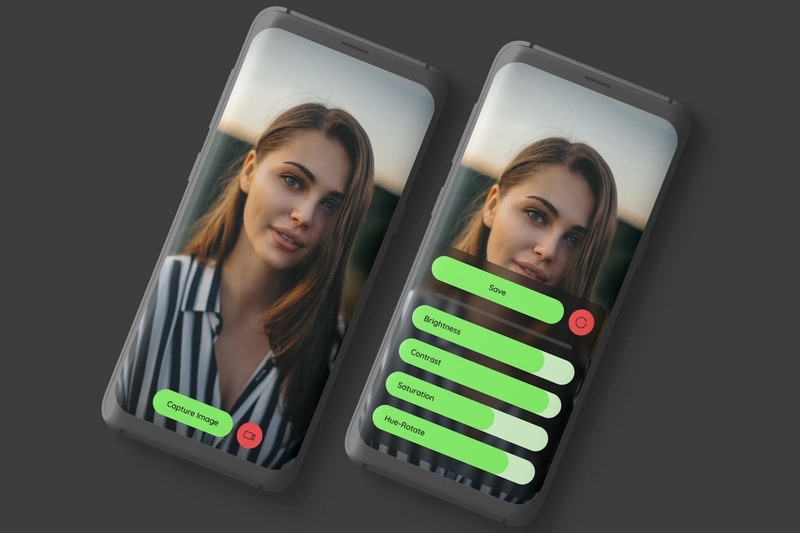
您也可以在这里为该项目做出贡献!
一款在线相机,它使用您的摄像头拍摄照片,您可以立即使用快速编辑功能编辑照片,并将其下载到您的设备上。访问地址:https ://snapshotcam.netlify.app ~ Project Enigma 的一部分