

🎉Vue.js 原子设计简介 [更新]🔥
根据我为不同客户构建和交付系统的经验,根据他们的需求或偏好,我不可避免地会用到像Ant Design和Tailwind这样的 UI 框架和库。通常,我需要在每个组件之上进行构建。如果是独自工作,这倒不是什么大问题。但团队合作时,情况很快就会变得复杂起来。因此,我开始寻找能够为我负责的项目提供开发灵活性和系统可维护性的不同方法。我选择了原子设计方法,并想分享一下它为何对我有用。

原子设计是一种创建设计系统的方法论,它将用户界面分解成小型、可重用的组件,具体包括:
- 原子
- 分子
- 生物
- 模板
- 页
通过采用模块化设计方法,原子设计可以帮助团队创建一致、可扩展且易于维护的用户界面。
为了简单起见,本文将探讨如何仅使用 HTML 在Vue.js中实现原子设计。我将从原子设计的基础知识入手,然后演示如何在 Vue.js 中应用其原则。
文章末尾会提供一个包含页眉、表单和页脚的页面示例。您可以将此示例应用于任何 UI 框架。

您可能会注意到每个组成部分周围都有边框。这是有意为之,以便您能够识别它是原子、分子还是生物体。

Vue-PDF-Viewer:一款功能强大且用途广泛的 Vue.js PDF 解决方案
这里简单介绍一下我一直在开发的项目——Vue PDF Viewer。这个库可以轻松地在您的 Vue 或 Nuxt 应用程序中渲染 PDF 文档,使用户能够直接在您的网站上与 PDF 进行交互。它具备主题定制、内置本地化和响应式设计等功能,旨在提供灵活流畅的用户体验,满足您项目的各种需求。

如果您觉得这个工具对您有帮助,我非常希望您能了解一下Vue PDF Viewer。您的支持激励我继续为开发者社区创造和改进工具!
原子设计剖析
原子设计由五个层级组成,分别代表用户界面的基本构建模块。在这个例子中,我创建了一个倒置的树状结构来可视化各个组成部分之间的连接方式。
- Page
 - Full Layout Template
  - Header Organism
    - Logo Atom
    - Search Form Molecule
      - TextBox Atom
      - Button Atom
  - Content Organsim
    - Form Molecule
      - 2x TextBox Atoms
      - Button Atom
  - Footer Organism
    - Copyright Atom
    - Subscribe Form Molecule
      - TextBox Atom
      - Button Atom
1. 原子
原子是用户界面中最小的单元,如果进一步分解,它们的含义将无法改变。原子包括图标、按钮、标签、输入框和字体等。
在 Vue.js 中,原子(atoms)可以创建为可重用的组件,这些组件接受 props 来定制其外观和行为。在这个例子中,我们需要准备几个原子:
- 文本框
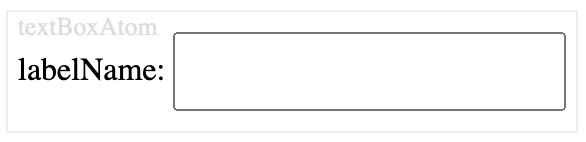
<template>
<div class="component-wrapper" data-name="textBoxAtom">
  <label>{{ label }}: <input type="text" :placeholder="placeHolder" /></label>
</div>
</template>

<script>
export default {
  name: 'TextBoxAtom',
  props: {
    label: {
      type: String,
      default: 'labelName'
    },
    placeHolder: String,
  },
};
</script>
<style scoped>
  input{
      padding: 0.75em 2em;
  }
</style>
- 按钮
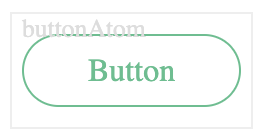
<template>
 <div class="component-wrapper" data-name="buttonAtom">
  <button :disabled="disabled">
    <slot>Button</slot>
  </button>
 </div>
</template>

<script>
export default {
  name: 'ButtonAtom',
  props: {
    type: String,
    size: String,
    disabled: Boolean,
  },
};
</script>
<style scoped>
button {
  color: #4fc08d;
}
button {
  background: none;
  border: solid 1px;
  border-radius: 2em;
  font: inherit;
  padding: 0.5em 2em;
}
</style>
- 标识
<template>
  <div class="component-wrapper" data-name="logoAtom">
    <img :src="computedImageUrl" alt="logo"/>
  </div>
</template>

<script>
export default {
  props: {
    width: {
      type: Number,
      default: 50
    },
    height: {
      type: Number,
      default: 50
    }
  },
  computed: {
    computedImageUrl() {
      return `https://picsum.photos/${this.width}/${this.height}`
    }
  }
};
</script>
2. 分子
分子是由两个或多个原子组成的组合体,它们协同工作以执行特定功能。在 Vue.js 中,可以通过在父组件内组合子组件来创建分子。分子的例子包括表单、搜索栏、导航菜单和卡片。
以上述例子为例,我们需要将原子组合起来,形成以下分子:
- 订阅表单分子
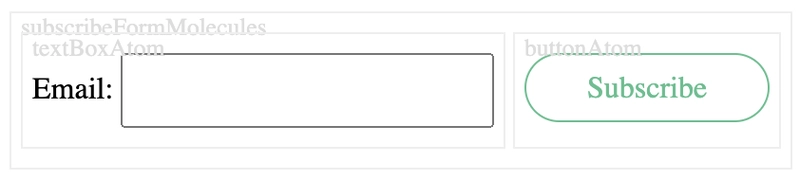
<template>
<form class="component-wrapper" data-name="subscribeFormMolecules">
<TextboxAtom label="Email" />
<ButtonAtom>Subscribe</ButtonAtom>
</form>
</template>
<script>
import TextboxAtom from "https://codepen.io/9haroon/pen/LYXgdKg.js";
import ButtonAtom from "https://codepen.io/9haroon/pen/BaGqrJg.js";
export default {
components: { ButtonAtom, TextboxAtom }
};
</script>
<style scoped>
form {
display: inline-flex;
}
</style>
- 搜索表单分子
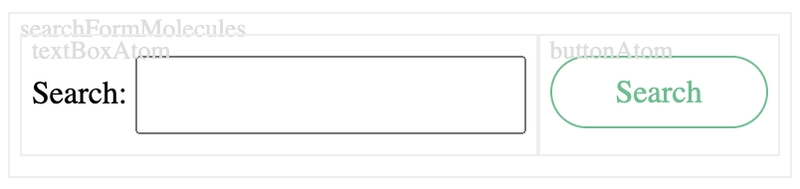
<template>
  <form class="component-wrapper" data-name="searchFormMolecules">
    <InputAtom label="Search" />
    <ButtonAtom>Search</ButtonAtom>
  </form>
</template>

<script>
import InputAtom from "https://codepen.io/9haroon/pen/LYXgdKg.js";
import ButtonAtom from "https://codepen.io/9haroon/pen/BaGqrJg.js";
export default {
  components: { ButtonAtom, InputAtom }
};
</script>
<style scoped>
form {
  display: inline-flex;
}
</style>
- 形成分子
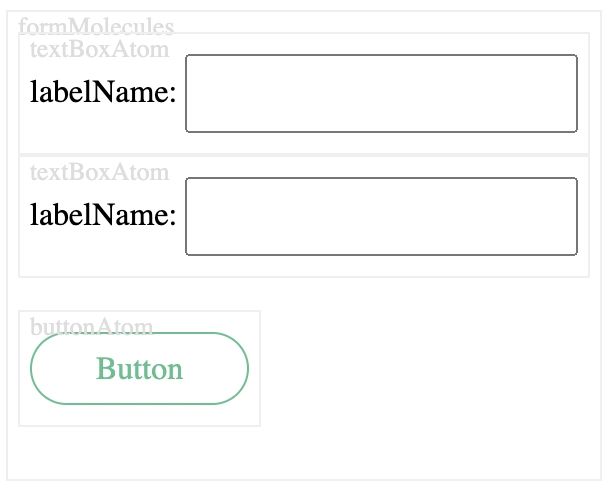
<template>
  <div class="form-molecule component-wrapper" data-name="formMolecules">
    <div><InputAtom :label="nameLabel" :placeholder="namePlaceholder" /></div>
    <div><InputAtom :label="emailLabel" :placeholder="emailPlaceholder" /></div>
    <p>
      <ButtonAtom :disabled="isSubmitDisabled">
        {{ submitLabel || "Button" }}
      </ButtonAtom>
    </p>
  </div>
</template>

<script>
import InputAtom from "https://codepen.io/9haroon/pen/LYXgdKg.js";
import ButtonAtom from "https://codepen.io/9haroon/pen/BaGqrJg.js";
export default {
  name: "FormMolecule",
  components: {
    InputAtom,
    ButtonAtom
  },
  props: {
    nameLabel: String,
    namePlaceholder: String,
    emailLabel: String,
    emailPlaceholder: String,
    submitLabel: String,
    isSubmitDisabled: Boolean
  }
};
</script>
您可以在分子集合中找到这些代码。
3. 生物体
生物体是由构成用户界面不同部分的分子组合而成的,例如页眉、页脚、侧边栏和内容块。在 Vue.js 中,可以通过在布局组件内将分子作为子组件组合来创建生物体。
本次实验需要三种生物体。
- 标题生物

<template>
  <header class="component-wrapper" data-name="headerOrganism">
    <LogoAtom width="60" />
    <SearchFormMoecules />
  </header>
</template>

<script>
import SearchFormMoecules from "https://codepen.io/9haroon/pen/zYMmjqa.js";
import LogoAtom from "https://codepen.io/9haroon/pen/xxQMbeJ.js";
export default {
  components: { SearchFormMoecules, LogoAtom }
};
</script>
<style scoped>
header {
  min-height: 50px;
  display: flex;
  justify-content: space-between;
  align-items: center;
}
</style>
- 内容组织

<template>
  <div class="page-organism">
    <div class="content-wrapper-title">
      <h1><slot name="title">Here might be a page title</slot></h1>
      <p><slot name="description">Here might be a page description</slot></p>
    </div>
    <slot>...</slot>
    <!--   This might includes some molecules or atoms   -->
  </div>
</template>
<script>
export default {
  name: "ContentOrganism",
  components: {}
};
</script>
<style scoped>
.page-organism {
  padding-top: 50px;
  padding-bottom: 80px;
  box-shadow: inset 0px 10px 15px -3px rgba(0, 0, 0, 0.1);
}
.content-wrapper-title {
  text-align: center;
}
</style>
- 页脚组织

<template>
  <footer class="component-wrapper" data-name="footerOrganism">
    <CopyrightAtom />
    <SubscribeFormMoecules />
  </footer>
</template>

<script>
import SubscribeFormMoecules from "https://codepen.io/9haroon/pen/ExOrarL.js";
import LogoAtom from "https://codepen.io/9haroon/pen/xxQMbeJ.js";
import CopyrightAtom from "https://codepen.io/9haroon/pen/gOQqOBj.js";
export default {
  components: { SubscribeFormMoecules, LogoAtom, CopyrightAtom }
};
</script>
<style scoped>
footer {
  display: flex;
  justify-content: space-between;
  align-items: center;
}
</style>
和往常一样,这里是我收集的一些生物体的代码。
4. 模板
模板是定义页面布局和组成的结构,它通过指定区域(例如页眉、页脚和内容区域)内元素的放置位置和大小来实现这一目标。
在 Vue.js 中,模板可以创建为父组件,并接受用于子组件的命名插槽。将这三种生物的概念应用于模板,其实现方式如下。

<template>
  <div class="full-layout-template">
    <HeaderOrganism />
    <ContentOrganism class="content">
      <template #title>
        <slot name="title">default title</slot>
      </template>
      <template #description>
        <slot name="description">default description</slot>
      </template>
      <slot />
    </ContentOrganism>
    <FooterOrganism class="page-footer" />
  </div>
</template>
<script>
import HeaderOrganism from "https://codepen.io/9haroon/pen/WNYaJGR.js";
import ContentOrganism from "https://codepen.io/9haroon/pen/vYQbOeO.js";
import FooterOrganism from "https://codepen.io/9haroon/pen/RwqvPRN.js";
export default {
  name: "FullLayoutTemplate",
  components: {
    HeaderOrganism,
    ContentOrganism,
    FooterOrganism
  }
};
</script>
<style scoped>
.full-layout-template {
  display: flex;
  flex-direction: column;
  min-height: 90vh;
}
.content {
  flex: 1 0 auto;
}
.page-footer {
  flex-shrink: 0;
}
</style>
这是模板的CodePen 链接。
5. 页
页面是用户界面的最终呈现形式,它将模板与特定内容相结合,形成完整的视图。在原子设计中,页面就像模板的实例,代表着用户独特的体验。
在 Vue.js 中,可以通过复制模板并将其插槽替换为实际内容来创建页面。虽然在本例中我只更改了Content Organism的内容,但您可以选择更改全部内容或不更改任何内容。

<template>
  <FullLayoutTemplate>
    <template #title>{{ title }}</template>
    <template #description>{{ description }}</template>
    <div class="fixed-width">
      <FormMolecule nameLabel="Name" emailLabel="Email" submitLabel="Save" />
    </div>
  </FullLayoutTemplate>
</template>
<script>
import FullLayoutTemplate from "https://codepen.io/9haroon/pen/GRwzpxx.js";
import FormMolecule from "https://codepen.io/9haroon/pen/PoxyRMo.js";
export default {
  name: "HomePage",
  components: {
    FullLayoutTemplate,
    FormMolecule
  },
  data() {
    return {
      title: "Welcome to my example",
      description: "This is an example of Atomic Design in Vue.js",
      copyright: "Copyright © 2023"
    };
  }
};
</script>
<style scoped>
* {
  font-family: Avenir, Helvetica, Arial, sans-serif;
}
.fixed-width {
  max-width: 350px;
  margin: 0 auto;
}
</style>
这是CodePen上该页面的链接。

🆕更新:虽然本文的代码示例使用的是 Vue 2,但我也在 Stackblitz 上创建了一个完整的 Vue 3 + Composition API + TypeScript 版本。👉
在Stackblitz 上试用
Vue.js 中原子设计的优势
在 Vue.js 中使用原子设计,可以获得诸多好处,例如:
-
一致性:通过创建可重用的组件,您可以确保用户界面在所有页面上的外观和行为保持一致。
-
可扩展性:通过将用户界面分解成小部分,您可以轻松地添加、删除或更新组件,而不会影响系统的其他部分。
-
可维护性:通过将组件组织到文件夹和文件中,您可以轻松地查找、编辑或调试它们,而无需考虑系统的其他部分。
-
可重用性:通过创建独立组件,您可以在其他项目中重用它们,或与社区共享它们,从而节省时间和精力。
原子设计是一种强大的方法论,可以帮助你在 Vue.js 中设计出更好的用户界面。遵循它的原则,你可以创建可重用、模块化和可扩展的组件,从而提高代码的可维护性,并提升用户满意度。所以,不妨尝试一下,并告诉我效果如何!

Vue PDF 查看器:一个完整的 Vue.js PDF 解决方案
如果您正在寻找一款功能强大且灵活的解决方案,以便在 Vue 或 Nuxt 应用程序中直接渲染 PDF 文件,那么Vue PDF Viewer就是您的理想之选。它提供丰富的功能,例如主题自定义、本地化支持和响应式布局,旨在满足各种项目需求,同时带来流畅、友好的用户体验。
如果您觉得这有用,欢迎探索Vue PDF Viewer,看看它如何能提升您的下一个项目。您的支持对我意义重大,也将激励我创作更多内容。
提前感谢!🙏
文章来源:https://dev.to/vue-pdf-viewer/introducing-atomic-design-in-vuejs-1l2h