WebView — React Native 应用中 WebView 的导航和数据流 WebView 和自定义导航来处理 WebView 中的导航 如何从 React Native 向 WebView 传递数据 结论 WebView — React Native 应用中 WebView 的导航和数据流 WebView 和自定义导航来处理 WebView 中的导航 如何从 React Native 向 WebView 传递数据 在 React Native 中,WebView 是让用户在 iOS 或 Android 应用中访问外部链接的唯一途径。WebView 可用于在 React Native 应用中嵌入或运行 Web 应用,这在您拥有一个 Web 应用并希望将其与 React Native 应用连接时尤为有用。
我们将要建造什么
WebView 和自定义导航用于处理 WebView 中的导航。 如何从 WebView 将数据传递给 React Native。 如何从 React Native 向 WebView 传递数据。
先决条件
已安装的 Node.js 版本 <= 10.xx 可以使用一个包管理器,例如 npm 或 yarn。 请使用 React Native 版本 0.60.x 或更高版本
首先,我们创建一个新的 React Native 项目,用于示例应用程序。我将使用 react-native-cli。
react - native init RNWebViewExample
Enter fullscreen mode
Exit fullscreen mode
这将启动项目并加载所有必要的文件,以便开始使用 React Native。🎉
运行 React Native 应用
# for ios
react - native run - ios
# for android
react - native run - android
Enter fullscreen mode
Exit fullscreen mode
安装依赖项 我们依赖以下软件包来实现应用程序所需的功能:
react-native-webview- 该软件包允许我们在 React Native 应用中使用 WebView。 @react-navigation/native- 该软件包允许我们在 React Native 应用中使用导航功能。 @react-navigation/stack- 该软件包允许我们在 react-navigation 中创建堆栈导航器。 react-native-gesture-handler- 该软件包提供原生驱动的手势管理。
我们使用的是 react-native v.62,因此上述软件包无需额外链接。希望您已成功安装。如果您遇到任何问题,请参考上述软件包的官方安装指南。本教程将使用 iOS 模拟器。如果您使用的是 Windows 或 Linux 操作系统,则可以使用 Android Studio。

添加屏幕和导航 该 App组件将负责初始化屏幕并创建堆栈导航器。添加有助于构建堆栈导航器的导入语句。我们使用 `createStackNavigator` 函数来创建基于堆栈的导航流程。此函数接收一个路由配置对象和一个选项对象,并返回一个 React 组件。目前,它只有一个屏幕,其中显示一些用于导航到特定 WebView 的按钮。堆栈导航提供了 一种在屏幕之间切换的方法。这种机制的工作方式与 Web 应用程序在 Web 浏览器中的工作方式非常相似。Web 应用程序在浏览器中导航到不同网页时,要么使用 `push`(跳转到下一页),要么使用 `pop`(返回上一页)。类似地,在 React Native 应用程序中,可以使用不同的屏幕进行 `push` 或 `pop` 操作。
import React from " react " ;
import { StatusBar } from " react-native " ;
import { NavigationContainer } from " @react-navigation/native " ;
import { createStackNavigator } from " @react-navigation/stack " ;
import Home from " ./src/screens/RootScreen " ;
import WebToNative from " ./src/screens/WebToNative " ;
import NativeToWeb from " ./src/screens/NativeToWeb " ;
import WebViewUI from " ./src/screens/WebView " ; const Stack = createStackNavigator (); function App () {
return (
<>
< StatusBar barStyle = " dark-content " />
< NavigationContainer >
< Stack . Navigator initialRouteName = " Home " >
< Stack . Screen
name = " Home "
component = { Home }
options = {{
headerTintColor : " green " ,
title : " Home " ,
}}
/ >
< Stack . Screen
name = " WebViewUI "
component = { WebViewUI }
options = {{
headerTintColor : " green " ,
title : " WebViewUI " ,
}}
/ >
< Stack . Screen
name = " WebToNative "
component = { WebToNative }
options = {{
headerTintColor : " green " ,
title : " WebToNative " ,
}}
/ >
< Stack . Screen
name = " NativeToWeb "
component = { NativeToWeb }
options = {{
headerTintColor : " green " ,
title : " NativeToWeb " ,
}}
/ >
< /Stack.Navigator >
< /NavigationContainer >
< / >
);
}
export default App ;
Enter fullscreen mode
Exit fullscreen mode
如果您是 React Navigation 库的新手,请务必查看他们的入门指南 react-navigation 。
WebView 和自定义导航来处理 WebView 中的导航 WebView 组件需要两个属性才能正常工作。首先,必须将 `startInLoadingState` 属性设置为 `true`,如下面的代码片段所示。然后,`renderLoading` 属性负责触发加载指示器,在本例中,它调用的是 `LoadingIndicatorView()` 函数。我们将使用网页的 URL。但如果您想直接加载 HTML,可以使用 WebView 的 `source` 属性中的 `HTML` 属性,稍后我会解释如何将 HTML 作为源。
< WebView
source = {{ uri : " https://dev.to/ " }}
renderLoading = { LoadingIndicatorView }
startInLoadingState = { true }
ref = { webviewRef }
/ >
Enter fullscreen mode
Exit fullscreen mode
使用 WebView 处理导航 在组件内部 WebViewUI,我们创建三个用于导航的事件处理程序。
webViewgoback:返回 WebView 中的上一网页
webViewNext:跳转到 WebView 中的下一个网页。
props.navigation.navigate("Home"):在 react-ative 中使用返回主页组件。
import React from " react " ;
import {
View ,
Text ,
ActivityIndicator ,
TouchableOpacity ,
SafeAreaView ,
StyleSheet ,
} from " react-native " ;
import { WebView } from " react-native-webview " ; function WebViewUI ( props ) {
const webviewRef = React . useRef ( null ); function webViewgoback () {
if ( webviewRef . current ) webviewRef . current . goBack ();
} function webViewNext () {
if ( webviewRef . current ) webviewRef . current . goForward ();
} function LoadingIndicatorView () {
return (
< ActivityIndicator
color = " #009b88 "
size = " large "
style = { styles . ActivityIndicatorStyle }
/ >
);
}
return (
<>
< SafeAreaView style = { styles . flexContainer } >
< WebView
source = {{ uri : " https://dev.to/ " }}
renderLoading = { LoadingIndicatorView }
startInLoadingState = { true }
ref = { webviewRef }
/ >
< View style = { styles . tabBarContainer } >
< TouchableOpacity onPress = { webViewgoback } >
< Text style = {{ color : " green " }} > Back < /Text >
< /TouchableOpacity >
< TouchableOpacity onPress = {() => props . navigation . navigate ( " Home " )} >
< Text style = {{ color : " green " }} > Exit < /Text >
< /TouchableOpacity >
< TouchableOpacity onPress = { webViewNext } >
< Text style = {{ color : " green " }} > Next < /Text >
< /TouchableOpacity >
< /View >
< /SafeAreaView >
< / >
);
} const styles = StyleSheet . create ({
ActivityIndicatorStyle : {
flex : 1 ,
justifyContent : " center " ,
},
flexContainer : {
flex : 1 ,
},
tabBarContainer : {
backgroundColor : " #d3d3d3 " ,
height : 56 ,
alignItems : " center " ,
flexDirection : " row " ,
paddingHorizontal : 16 ,
justifyContent : " space-between " ,
},
button : {
fontSize : 24 ,
},
arrow : {
color : " #ef4771 " ,
},
icon : {
width : 20 ,
height : 20 ,
},
});
export default WebViewUI ;
Enter fullscreen mode
Exit fullscreen mode
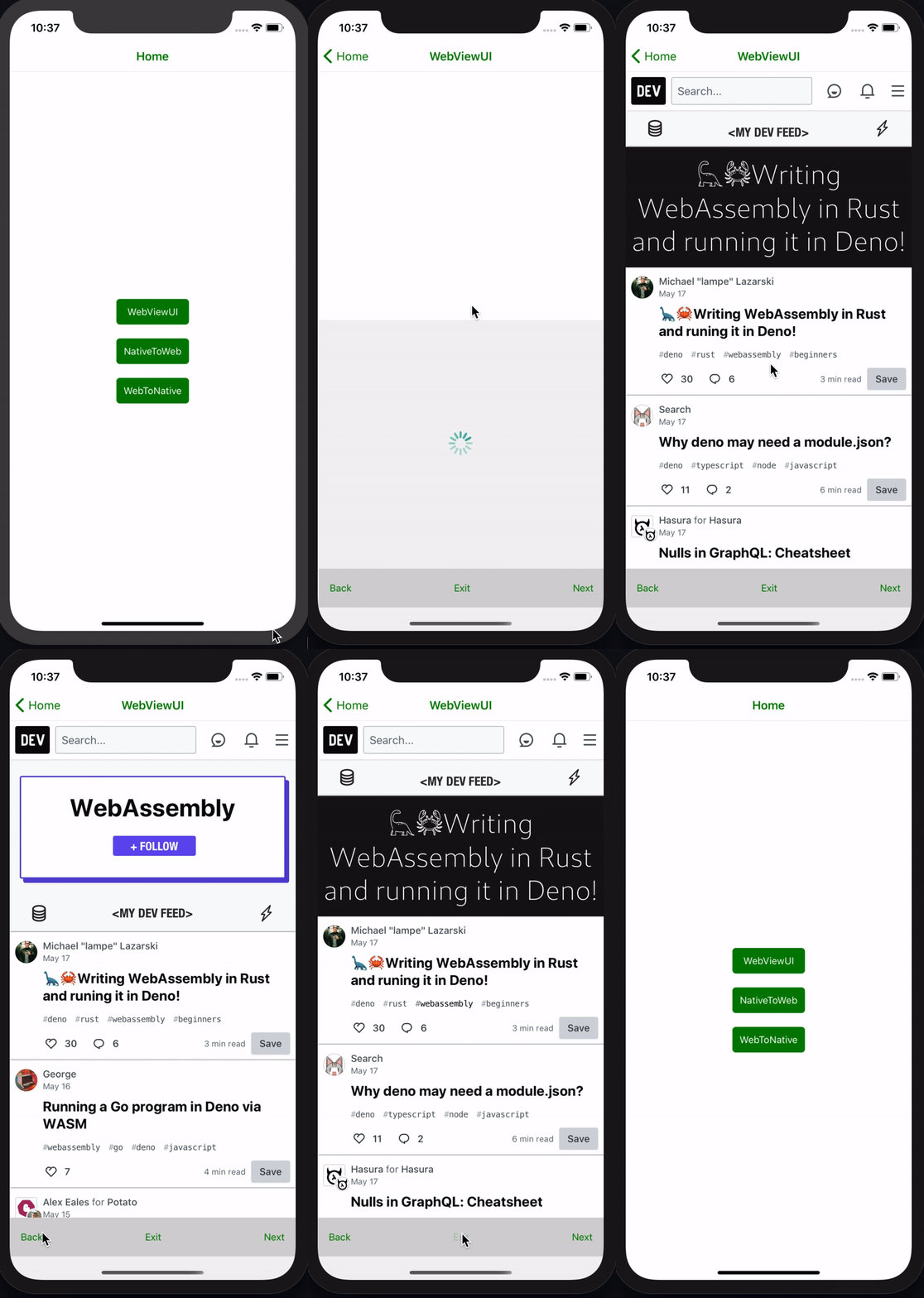
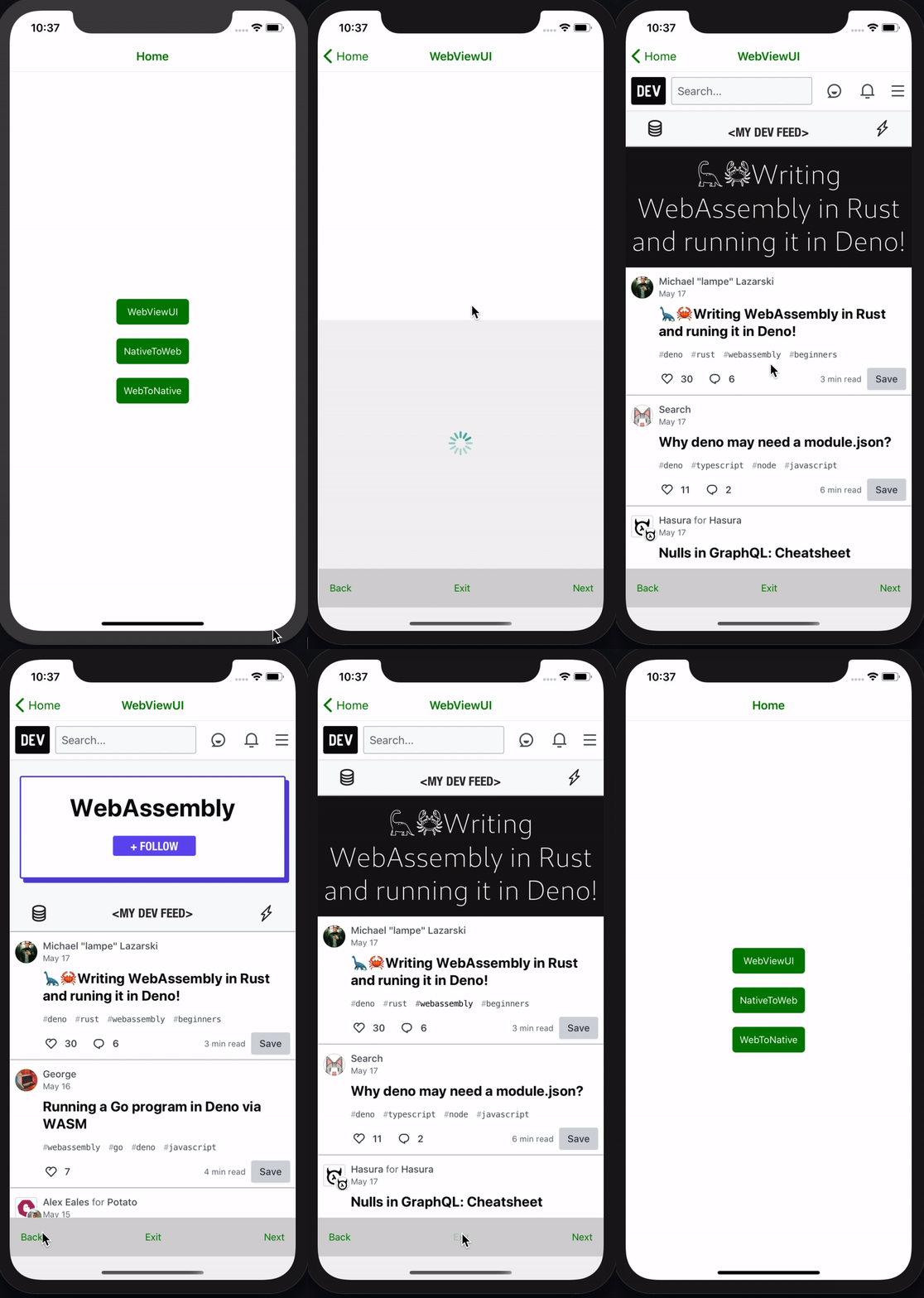
这里是完整的演示,后退、下一步和退出按钮都能正常工作。
GIF
如何从 WebView 向 React Native 传递数据 上一节我们学习了如何通过 URL 加载网页。但如果您想直接加载 HTML,可以使用 WebView 的 source 属性中的 HTML 属性,如下所示。如果网页需要向您的 React Native 代码发送/传递某些信息呢?这时我们就可以使用react-native 中的监听器 window.ReactNativeWebView.postMessage属性了 onMessage。
window.ReactNativeWebView.postMessage(JSON.stringify(data))将数据发送到 React Native
注意 :window.ReactNativeWebView.postMessage 只接受一个参数,该参数必须是字符串。
import React from " react " ;
import { ActivityIndicator , SafeAreaView , StyleSheet } from " react-native " ;
import { WebView } from " react-native-webview " ; function WebToNative ( props ) {
const webviewRef = React . useRef ( null );
function onMessage ( data ) {
alert ( data . nativeEvent . data );
console . log ( data . nativeEvent . data );
props . navigation . navigate ( " Home " );
} function LoadingIndicatorView () {
return (
< ActivityIndicator
color = " #009b88 "
size = " large "
style = { styles . ActivityIndicatorStyle }
/ >
);
}
return (
<>
< SafeAreaView style = { styles . flexContainer } >
< WebView
source = {{
html : `<body style="display:flex; justify-content:center;flex-direction:column;align-items:center">
<h2>React native webview</h2>
<h2>React native webview data transfer between webview to native</h2>
<button style="color:green; height:100;width:300;font-size:30px"
onclick="myFunction()">Send data to Native</button>
<p id="demo"></p>
<script>
const data = [
'Javascript',
'React',
'React Native',
'graphql',
'Typescript',
'Webpack',
'Node js',
];
function myFunction() {
window.ReactNativeWebView.postMessage(JSON.stringify(data))
}
var i, len, text;
for (i = 0, len = data.length, text = ""; i < len; i++) {
text += data[i] + "<br>";
}
document.getElementById("demo").innerHTML = text;
</script>
</body>` ,
}}
renderLoading = { LoadingIndicatorView }
startInLoadingState = { true }
ref = { webviewRef }
onMessage = { onMessage }
/ >
< /SafeAreaView >
< / >
);
} const styles = StyleSheet . create ({
ActivityIndicatorStyle : {
flex : 1 ,
justifyContent : " center " ,
},
flexContainer : {
flex : 1 ,
},
});
export default WebToNative ;
Enter fullscreen mode
Exit fullscreen mode
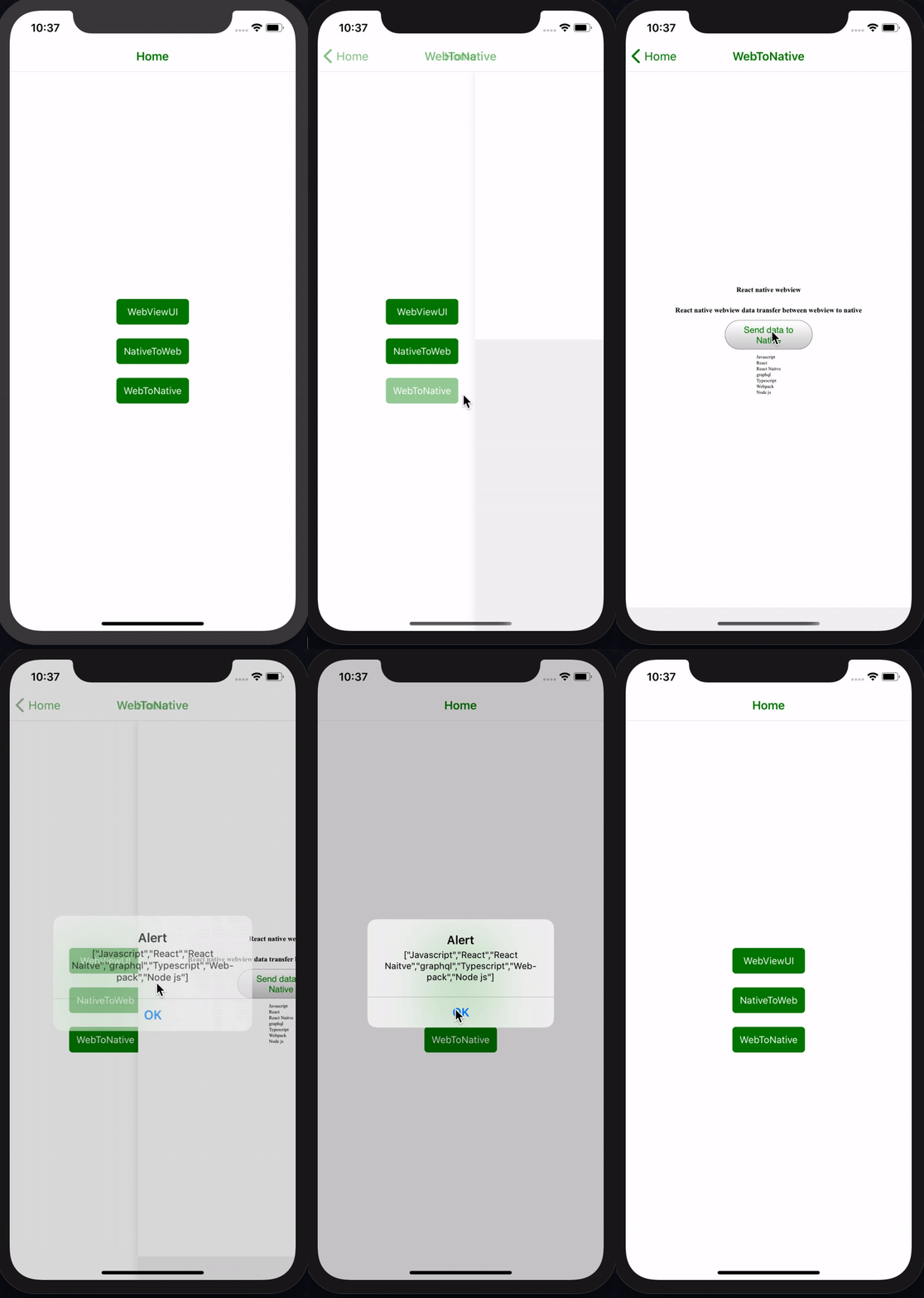
在模拟器中运行该应用程序,您将得到以下结果。
GIF
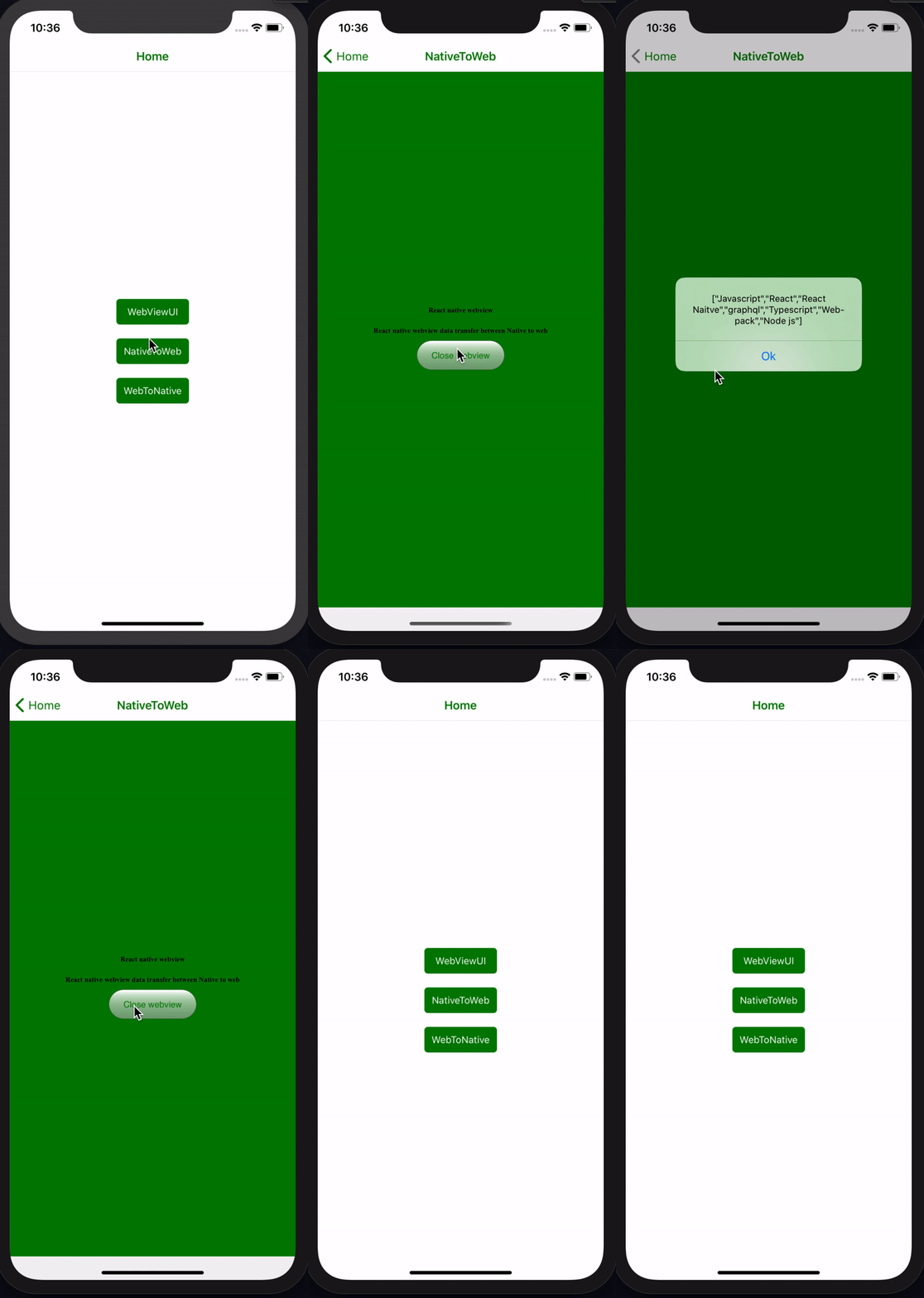
如何从 React Native 向 WebView 传递数据 在上一节中,我们详细学习了如何从 React Native 向 WebView 传递数据。现在我们将学习如何从 React Native 向 WebView 传递数据。我们将使用 injectedJavaScriptWebView 组件中的方法来传递数据。
document . addEventListener ( " message " , function ( event ) {
alert ( event . data )
}
Enter fullscreen mode
Exit fullscreen mode
使用上述消息事件监听器,我们可以将数据从 react-native 传递到 WebView。
import React from " react " ;
import { ActivityIndicator , SafeAreaView , StyleSheet } from " react-native " ;
import { WebView } from " react-native-webview " ; function NativeToWeb ( props ) {
const webviewRef = React . useRef ( null );
const data = [
" Javascript " ,
" React " ,
" React Native " ,
" graphql " ,
" Typescript " ,
" Webpack " ,
" Node js " ,
];
const runFirst = `
document.body.style.backgroundColor = 'green';
setTimeout(function() { window.alert(JSON.stringify([
'Javascript',
'React',
'React Naitve',
'graphql',
'Typescript',
'Webpack',
'Node js',
])) }, 1000);
true; // note: this is required, or you'll sometimes get silent failures
` ; function onMessage ( data ) {
props . navigation . navigate ( " Home " );
} function LoadingIndicatorView () {
return (
< ActivityIndicator
color = " #009b88 "
size = " large "
style = { styles . ActivityIndicatorStyle }
/ >
);
}
return (
<>
< SafeAreaView style = { styles . flexContainer } >
< WebView
source = {{
html : `<body style="display:flex;justify-content:center;flex-direction:column;align-items:center">
<h2>React native webview</h2>
<h2>React native webview data transfer between Native to web</h2>
<button style="color:green; height:100;width:300;font-size:30px"
onclick="myFunction()">Close webview</button>
<p id="demo"></p>
<script>
var newData = [];
document.addEventListener("message", function(data) {
newData.push(data.data)
alert(data.data)
var i, len, text;
for (i = 0, len = newData.length, text = ""; i < len; i++) {
text += newData[i] + "<br>";
}
document.getElementById("demo").innerHTML = text;
});
function myFunction() {
window.ReactNativeWebView.postMessage('Hello')
}
</script>
</body>` ,
}}
renderLoading = { LoadingIndicatorView }
startInLoadingState = { true }
ref = { webviewRef }
onMessage = { onMessage }
injectedJavaScript = { runFirst }
/ >
< /SafeAreaView >
< / >
);
} const styles = StyleSheet . create ({
ActivityIndicatorStyle : {
flex : 1 ,
justifyContent : " center " ,
},
flexContainer : {
flex : 1 ,
},
});
export default NativeToWeb ;
Enter fullscreen mode
Exit fullscreen mode
在模拟器中运行该应用程序,您将得到以下结果。
GIF
结论 本文总结了如何在 React Native 应用中入门、设置和使用 WebView 组件。本文的重点在于如何处理 WebView 内部的导航,以及如何在 React Native 和 WebView 之间传递数据。
您可以在这里找到本文的完整代码。
WebView — React Native 应用中 WebView 的导航和数据流
git clone https://github.com/mukeshmandiwal/RNWebViewExample.git
cd RNWebViewExample
yarn install or npm install
# for ios
cd ios && pod install
react - native run - ios
# for android
react - native run - android
Enter fullscreen mode
Exit fullscreen mode
WebView 和自定义导航来处理 WebView 中的导航
如何从 WebView 向 React Native 传递数据
如何从 React Native 向 WebView 传递数据
文章来源:https://dev.to/mukeshmandiwal/webview-data-flow-with-webviews-in-a-react-native-app-and-navigation-4396